Why does the form-to-CRM-to-spreadsheet-to-Slack pipeline fail


Table of Contents
- Introduction
- Why does the form-to-CRM-to-spreadsheet-to-Slack pipeline fail when volume spikes?
- What is CRM Google Sheets automation and why is sync CRM to spreadsheet only half the job?
- How do native HubSpot workflows help you connect HubSpot to Google Sheets without middleware?
- When do connector tools beat native actions for CRM Google Sheets automation?
- How do Make and n8n change the picture when three or more tools must move together?
- What should you watch for after you connect HubSpot to Google Sheets?
- When is DIY enough versus when do you need a 45-minute roadmap call for build order?
- Frequently Asked Questions (FAQs)
Introduction
Sales lives in HubSpot. Finance lives in Google Sheets. Between those two worlds, someone on your team is still the integration layer: exporting deals on Friday, fixing column names on Saturday, and answering Slack on Monday with numbers that already feel stale.
This post is about how to connect HubSpot to Google Sheets in a way that survives real volume. That means mapping handoffs before you buy tools, choosing between native HubSpot workflow actions, spreadsheet connectors, and middleware like Make or n8n, and knowing when a lightweight DIY path is enough versus when you need a sequenced build across three or more systems. If you are still treating humans as the sync engine, the goal is simple: replace brittle copy-paste with CRM Google Sheets automation you can observe, retry, and own.
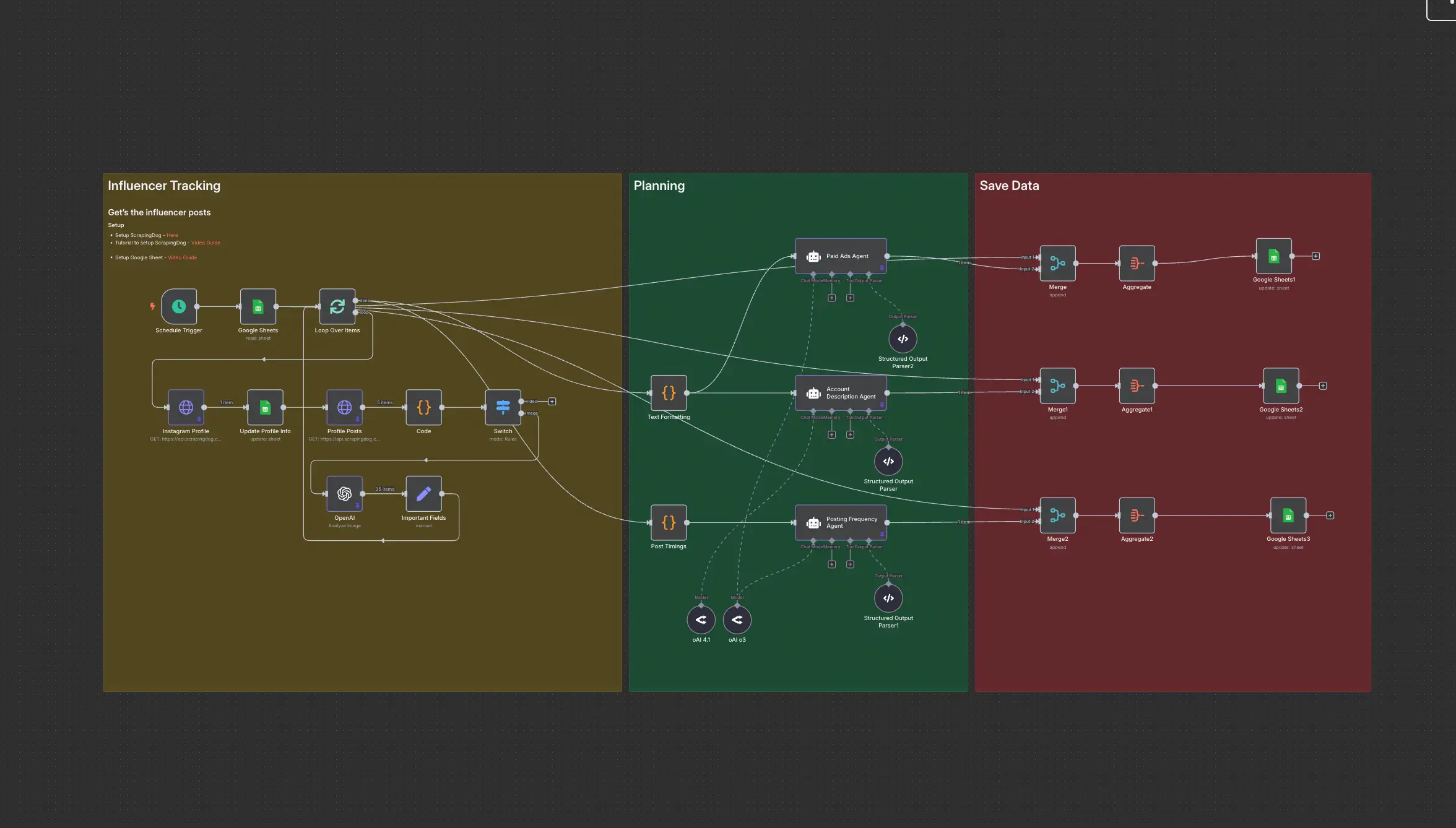
If your inbound motion still depends on manual CSV gymnastics, see how webhook-first patterns compare in Meta lead ads to CRM automation with HubSpot and n8n. For Sheets credentials inside automation, the practical setup notes in Google Sheets plus n8n setup still apply once you leave HubSpot-only actions. When you are not sure which processes deserve automation first, AI automation audit and readiness for small business is a better starting point than wiring another Zap you will fear touching.
Why does the form-to-CRM-to-spreadsheet-to-Slack pipeline fail when volume spikes?
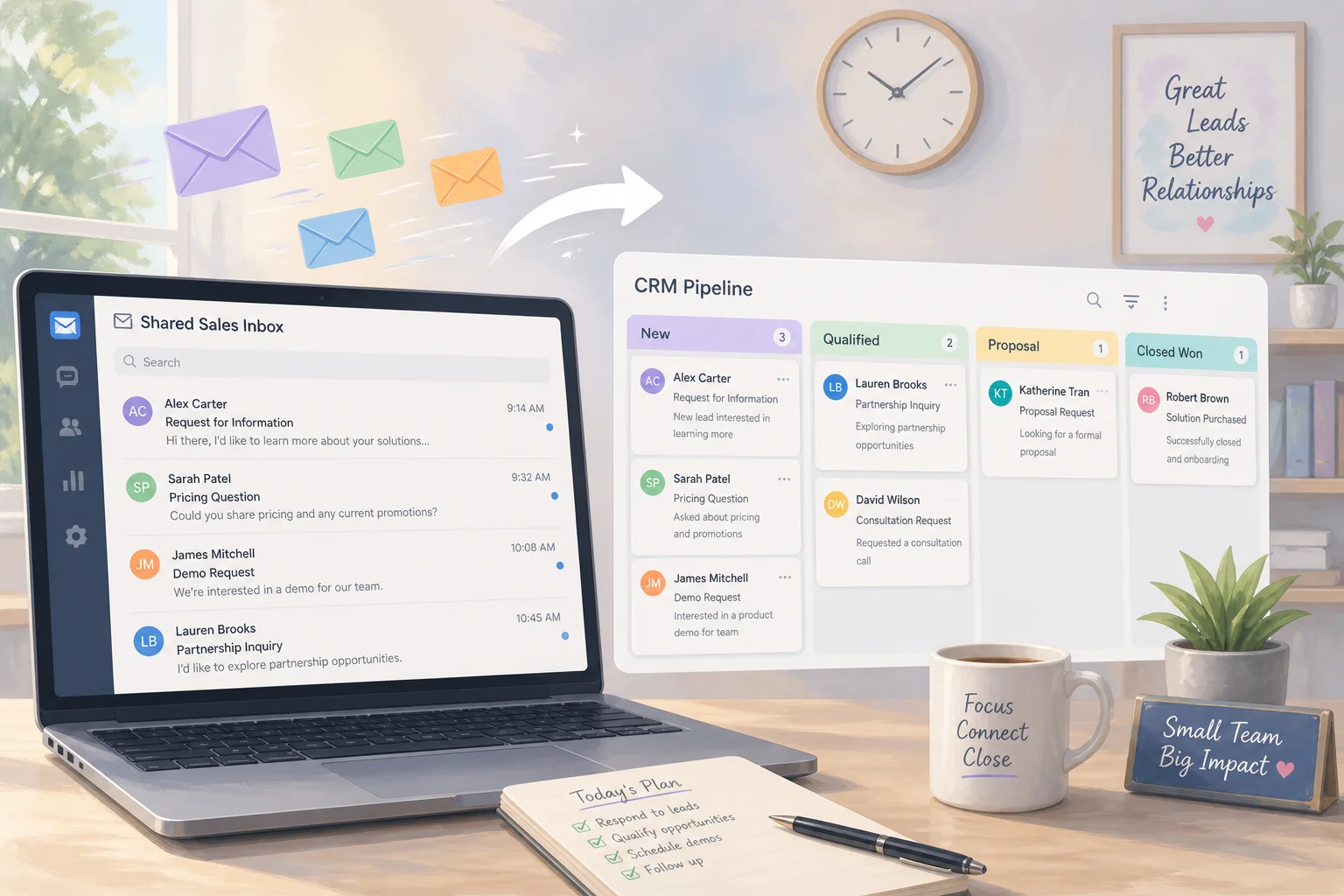
Most SMB revenue teams grow into the same pattern. Marketing forms create leads in HubSpot. Sales works opportunities there and updates stages, amounts, and owners. Finance or ops tracks invoices, payouts, or commissions in one or more spreadsheets. Leadership asks for a fresh rollup in Slack every Monday.
At low volume, people fill the gaps with exports, screenshots, and side threads. The system works until it does not. Then you see stale numbers because an export is a snapshot, not a sync. You see missed rows when a deal never lands in the finance tab. You see wrong owners when HubSpot moved forward but the sheet did not. You see version sprawl when multiple people keep their own copy. You see weekend reconciliations that should never have become normal.
You do not have a spreadsheet problem first. You have a handoff problem. The landing copy is blunt for a reason: when your team is the permanent glue between systems, every growth spurt becomes an operations emergency. Automation is not magic; it is a way to make those handoffs explicit, logged, and repeatable so humans review exceptions instead of every row.
What is CRM Google Sheets automation and why is sync CRM to spreadsheet only half the job?
CRM Google Sheets automation is any setup that keeps CRM facts and sheet-based workflows aligned without manual export. That can be one-way pushes from HubSpot into a ledger, scheduled pulls into a reporting range, or two-way field sync with guardrails.
The phrase sync CRM to spreadsheet sounds like a single checkbox. In practice it hides decisions you still have to make: which fields are authoritative in HubSpot, which columns finance owns, how often data must be fresh, and what happens when two sources disagree. If you skip those decisions, the automation you build will fight itself. You will either duplicate rows on every webhook retry or overwrite good data because a job ran twice.
Treat Sheets as what it is: a flexible surface for finance and ops, not a second CRM. Use it for reporting, commission math, or temporary staging until a billing system owns certain fields. Let HubSpot own pipeline truth for sales motion. Draw the line on purpose.
How do you map owners and sources of truth before you connect HubSpot to Google Sheets?
Before you connect HubSpot to Google Sheets, answer four questions on paper.
Who updates what, by role? When do they update it, meaning which deal stages, invoice events, or lifecycle changes trigger work? Which properties and columns actually matter at each step, not every optional field in the CRM? Which system is the source of truth for each field?
Example split that works for many teams: HubSpot owns deal amount, stage, owner, and close date. Sheets owns invoice number, payout flags, or commission percentages until billing software absorbs them. If finance changes deal amount in a sheet without a rule, you will eventually distrust both systems.
Once mapped, you will see three common patterns: one-way HubSpot to Sheets for reporting, one-way Sheets to HubSpot for controlled backfills, and multi-step orchestration across HubSpot, Sheets, billing, and Slack. Each pattern needs a different tool choice.
How do native HubSpot workflows help you connect HubSpot to Google Sheets without middleware?
HubSpot can talk to Google Sheets directly through workflow actions once a Google account is connected. Typical actions include creating a new row when a record meets a trigger and updating an existing row using a lookup column paired with a stable key such as deal ID.
That pattern fits when you need one-way updates into a primary sheet, a modest set of properties per row, and logic that already lives in HubSpot workflows. A classic use case is enrollment on Closed Won: append deal ID, account name, amount, owner, close date, and product to a revenue ledger tab. Another is updating finance-owned columns when a HubSpot property changes, using the deal ID column in Sheets as the lookup anchor so you do not spawn duplicate rows.
Native actions shine when your goal is to sync CRM to spreadsheet for reporting and everyone agrees HubSpot pushes truth outward. You stay inside familiar permissions and workflow history, and you avoid standing up middleware for a single clean path.
Limits matter. Row actions cap how many cells you can write per step, so wide templates need design discipline. The integration is point-to-point: one workflow path to a defined sheet, not a full data warehouse. If finance needs to edit rows and have those edits flow back into HubSpot automatically, native actions alone are usually not enough. That is when connectors or general automation tools enter the picture.
Operational hygiene still applies when you stay native. Name workflows after the business outcome, not after the tool string you copied from a template. Keep a short runbook that says which Google identity owns the OAuth grant, which tab is canonical, and which HubSpot list or view you use to audit recent rows when someone says a deal is missing. Those five minutes of documentation save hours when turnover hits RevOps.
When do connector tools beat native actions for CRM Google Sheets automation?
Dedicated spreadsheet connectors sit between full DIY workflows and heavy middleware. Products such as Coupler.io focus on scheduled imports from HubSpot objects into Sheets for dashboards and reporting. Coefficient and similar tools emphasize live ranges and two-way updates so finance can change cells that map back to HubSpot properties. Unito-style field mapping products let you configure direction per field and keep multiple tools aligned without writing code.
Choose a connector when you need broader tables than workflow actions comfortably maintain, refresh on a timetable rather than only on CRM events, or controlled two-way sync for a subset of fields. They often absorb rate limiting and batching details that would otherwise land on your team.
They still add another vendor, another OAuth path, and another place where access can silently break when a user who authorized the integration leaves the company. Budget time for admin hygiene the same way you would for a private app in HubSpot.
How do Make and n8n change the picture when three or more tools must move together?
Make, n8n, Zapier-class tools are where you model branching stories: deal closed, row ensured in Sheets, invoice created in billing, Slack message to finance, task created for implementation.
Make, n8n, Zapier-class tools are where you model branching stories: deal closed, row ensured in Sheets, invoice created in billing, Slack message to finance, task created for implementation. They can transform payloads, loop batches, and centralize error handling in one canvas.
That flexibility is why teams reach for them when native CRM actions feel tight. It is also where complexity compounds. You inherit questions about idempotency when HubSpot retries a webhook, partial failure when Sheets succeeds but Slack fails, token rotation across multiple APIs, and observability when only one person understands scenario version seven.
If you already run n8n, pairing HubSpot triggers with the Sheets node is a natural extension; the same OAuth and quota lessons from Google Sheets plus n8n setup apply in production flows, not just tutorials. If your pain is still mostly lead capture rather than revenue sheets, compare webhook discipline with Meta lead ads to CRM automation with HubSpot and n8n before you over-build.
Make and n8n differ in hosting and pricing posture, but architecturally they ask the same of you: define triggers, map payloads, handle errors, and version the flow like code. For many SMBs the winning move is not maximal orchestration on day one. It is a thin middleware layer that only owns what HubSpot cannot express cleanly, such as calling a billing API and then writing the invoice ID back to both HubSpot and Sheets in one transaction-like sequence. Everything else can stay in CRM workflows until that boundary feels tight.
What should you watch for after you connect HubSpot to Google Sheets?
Rate limits hit faster than people expect when every property change fans out to an API call. Batch where you can, pick sane refresh intervals, and design retries so a transient error does not duplicate revenue rows.
OAuth and ownership drift break automations quietly. Tie integrations to service accounts or shared admin patterns where possible, and document who must re-auth when passwords rotate.
Idempotency is non-negotiable once webhooks enter the mix. Store HubSpot record IDs in sheet columns, enforce uniqueness on those keys, and make workflows upsert instead of blind append when the same deal fires twice.
Human process still matters. Someone should own a weekly health check: sample rows against HubSpot, read error logs in the automation tool, and confirm finance agrees with the field mapping after any CRM schema change.
Spreadsheet performance is a quiet ceiling. Very wide tabs, volatile formulas, and array-heavy dashboards slow down both humans and API writes. If finance needs heavy modeling, split the operational ledger that automation touches from the analytical workbook that refreshes from it. That separation alone prevents accidental breakage when someone adds a clever macro on the same tab your integration targets.
When is DIY enough versus when do you need a 45-minute roadmap call for build order?
DIY is usually enough when the flow is one-way HubSpot to a single sheet, only a handful of properties move, volume is moderate, and a short delay is acceptable.
DIY is usually enough when the flow is one-way HubSpot to a single sheet, only a handful of properties move, volume is moderate, and a short delay is acceptable. In that world, map fields, ship native workflow actions or a simple connector, and stop there until requirements change.
You need a deliberate build order when three or more systems participate in the same customer journey, when two-way sync needs field-level rules about who may change what, when money or compliance is on the line, or when volume makes weekend reconciliation a recurring event. The sequence almost always starts with canonical sources of truth and stable IDs, then a reliable HubSpot-to-Sheet layer, then orchestration outward to billing and chat, with monitoring before you add more features.
If your stack spans HubSpot, Sheets, billing, and Slack, book a 45-minute roadmap call to turn scattered tools into an ordered build plan instead of stacking fragile automations on top of each other.
Frequently asked questions
Quick answers on the topics covered in this article.
Use HubSpot workflow actions that create or update rows when deals or contacts meet triggers, or use a connector that schedules object sync into a live sheet range. Both remove manual export as the default path.
It can include scheduled reporting pulls, two-way field updates with mapping rules, alerts when sheet metrics cross thresholds, and middleware that chains Sheets with billing or Slack in one flow.
Often yes for one-way reporting and ledgers with stable keys. If finance must edit rows and push changes back into HubSpot properties, plan for a connector or middleware with conflict rules.
Store HubSpot record IDs in a dedicated column, use update actions keyed on that column instead of append-only jobs for existing deals, and make automations idempotent when webhooks retry.
When you need multi-tool orchestration, complex transforms, branching retry logic, or tight coupling between Sheets, billing, and chat in one place.
API rate limits, OAuth expiry under individual users, and duplicate writes from retried events are the most common failure modes before spreadsheet performance itself hurts.
Temporarily, if you define which columns are authoritative and sync those fields back to HubSpot or billing deliberately. Long term, move money truth into systems designed for it.
Match refresh frequency to the decision being made. Operational cutoffs may need minutes; board-level reporting may tolerate hourly or daily if everyone agrees.
If multiple teams disagree on sources of truth or you are automating confusion, yes. A structured audit clarifies what to connect in which order; see AI automation audit and readiness for small business.
Fix capture first if leads never arrive cleanly in the CRM; sheet sync cannot rescue bad inbound plumbing. Review Meta lead ads to CRM automation with HubSpot and n8n for that path.