Grok AI Image Editing Capabilities 2026: Imagine & Limits
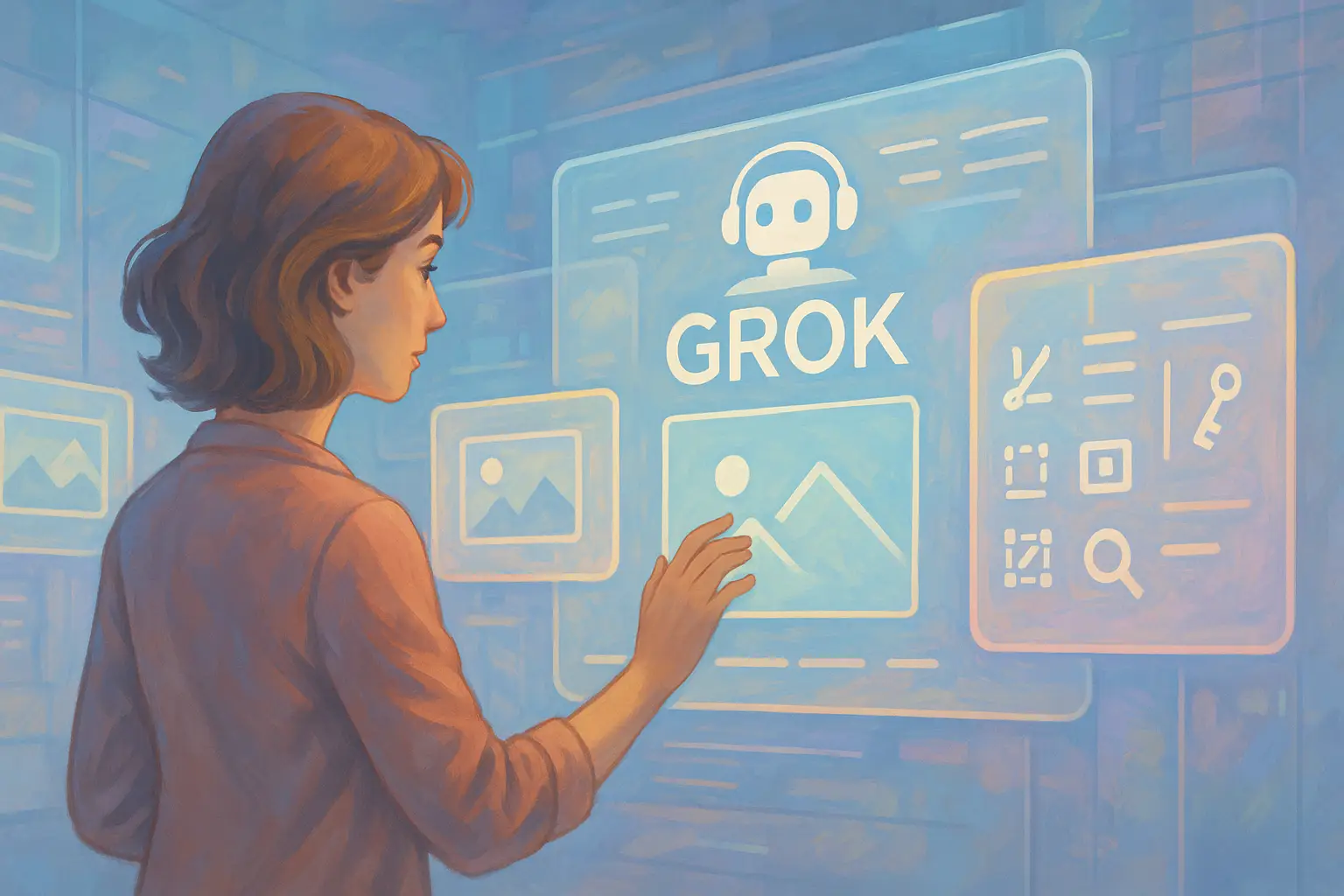
Table of Contents
- Introduction
- Does Grok AI have image editing or generation capabilities in 2026?
- What are Grok Imagine image editing capabilities in 2026?
- How do you remove an object or person from an image with Grok?
- How do you remove text or change the background in Grok Imagine?
- What are Grok image editing guidelines, limits, and restrictions?
- Why is Grok image editing not working?
- What are Grok Imagine edit prompt best practices?
- Understanding Grok Image Edit
- Secret 1: Embracing Natural Language Prompts
- Secret 2: The Versatility of Image Uploads
- Secret 3: Mastering Style Transfers and Filters
- Secret 4: Seamless Object Removal and Addition
- Secret 5: The Magic of Image-to-Image Transformation
- Secret 6: Text-to-Image Generation Techniques
- Secret 7: Editing Existing Photos with AI Precision
- Secret 8: Advanced Features - Animations and Face Swaps
- Secret 9: Navigating Grok's AI Image Moderation
- Secret 10: File Formats, Limits, and Data Privacy Tips
- Secret 11: Troubleshooting Common Grok Issues
- Secret 12: Best Practices for Crafting Prompts
- Secret 13: Integrating Grok with Other Tools
- Secret 14: Leveraging Community Feedback and Workarounds
- Secret 15: Staying Updated with Grok Developments
- Latest Updates and News (2026)
- Conclusion
- Frequently Asked Questions (FAQs)
Introduction
Grok Image Edit continues to revolutionize the way creators, marketers, and everyday users think about image editing. In 2026, this tool has matured into a robust platform that simplifies image transformation using natural language prompts. No longer do you need years of graphic design experience or a mastery of traditional software like Photoshop. Instead, you can simply describe, and Grok will deliver. In this guide, I will reveal the top 15 secrets that make Grok Image Edit a game changer. Whether you are a novice or an advanced user, these detailed insights will provide you with new ways to approach your digital imagery projects.
Most visitors arrive asking a simpler question first: does Grok AI have image editing capabilities in 2026? The sections below answer that directly, then walk through Grok Imagine features, xAI guidelines, remove-object prompts, and fixes when editing is not working. The numbered secrets later in the guide are practical tips once you know what the product actually supports.
Does Grok AI have image editing or generation capabilities in 2026?
Yes. Grok AI (xAI) has both image generation and image editing capabilities in 2026 on supported surfaces (Grok app, grok.com, and X). You can create images from text and edit photos you upload with natural-language prompts in Grok Imagine and related chat flows.
| Question | Short answer |
|---|---|
| Does Grok AI have image editing capabilities? | Yes - upload-and-edit plus text-to-image on supported plans. |
| Does Grok AI have image generation capability? | Yes - Grok Imagine and Aurora-class models generate from prompts. |
| Can Grok edit uploaded photos? | Yes - JPEG, PNG, and WebP uploads are typical; team accounts may block uploads. |
| Grok Imagine vs chat editing | Imagine is the dedicated image workspace; chat may combine vision + edit tools by version. |
| Free vs SuperGrok | Free tiers hit daily limits sooner; paid / SuperGrok raises caps (verify in your usage panel). |
Generation means Grok creates a new image from a text prompt. Editing means you upload an existing photo and ask for changes (remove object, change background, adjust style, face-related edits where policy allows). Both run through xAI moderation and plan limits. Capabilities shift with model version (Grok 3 / Grok 4 family) and surface - always confirm in your current app build.
What are Grok Imagine image editing capabilities in 2026?
Grok Imagine image editing capabilities in 2026 include text-to-image generation, upload-based edits, object and text removal, background changes, style transfer, face-swap-style edits where permitted, and limited animation on some builds - all gated by moderation, region, and account tier.
| Capability | Supported? | Notes |
|---|---|---|
| Text-to-image generation | Yes | Core Imagine workflow; Aurora improves photorealism. |
| Edit uploaded photos | Yes | Primary use case in 2026; not AI-only images. |
| Remove object from image / photo | Yes | Best with a clear subject and simple background. |
| Remove person from photo | Yes | Same workflow; policy may block sensitive contexts. |
| Remove text from image | Yes | Specify exact text or region in the prompt. |
| Background change / removal | Yes | Describe replacement scene or "clean neutral background." |
| Face swap / face edit | Partial | Works on many prompts; accuracy and policy vary. |
| Style transfer / filters | Yes | Reference artist, era, or aesthetic in the prompt. |
| Image animation | Partial | Available on some surfaces; not universal. |
| NSFW / policy-limited edits | Blocked or restricted | See guidelines section; do not expect uncensored output. |
If search sent you here for grok xai image editing capabilities 2026 or current grok image editing capabilities, treat this table as the live checklist. xAI ships frequent moderation and limit changes - pair this with the Grok moderation guide when prompts get blocked.
How do you remove an object or person from an image with Grok?
Upload the photo to Grok Imagine, name the object or person to remove, and ask Grok to fill the area naturally - object removal is one of the most searched Grok image editing capabilities and usually works best when the target is clearly described.
Remove the [person/object] on the [left/right/center] of this photo. Keep lighting, perspective, and background texture consistent. Do not change anything else.
Remove the passerby and the power line from the background. Preserve the skyline and color grading.
Tips for remove object from image queries:
- Crop or upload the highest-resolution source you have; Grok fills holes more cleanly on sharp inputs.
- One object per pass beats "remove everything wrong with this photo."
- If the result smears, retry with "match surrounding pavement/sky/foliage texture."
For remove person from photo, use neutral wording and expect moderation on real identifiable people in sensitive contexts.
How do you remove text or change the background in Grok Imagine?
To remove text, upload the image and point at the exact words or overlay. To change the background, describe the new scene or ask for a plain studio backdrop - both are standard Grok Imagine image editing workflows in 2026.
Remove the text "[exact words]" from the sign. Reconstruct the surface behind it so it looks untouched.
Replace the background with a soft gray studio backdrop. Keep the subject's edges clean and lighting unchanged.
Change the background to a sunny outdoor park. Match shadow direction to the subject.
These map directly to high-impression queries like grok image editing capabilities remove text, background change, and background removal.
What are Grok image editing guidelines, limits, and restrictions?
Grok image editing guidelines enforce safety and rights: sexual content involving minors, non-consensual imagery, violence, and many NSFW edits are blocked. Limits include daily edit/generation caps on free accounts, stricter caps on SuperGrok during high demand, file size ceilings, and team policies that disable uploads entirely.
| Topic | What to expect |
|---|---|
| xAI / Grok guidelines | Automated moderation on prompts and outputs; "content moderated" when blocked. |
| NSFW limits 2026 | Stricter than early Grok builds; do not plan workflows around bypassing filters. |
| Free tier | Lower daily limits; newest features may roll out to paid users first. |
| SuperGrok / premium | Higher caps; still subject to moderation. |
| Uploaded photos | Personal uploads supported; enterprise teams may see "image uploads disabled for your team." |
| Real people | Extra scrutiny on face edits, deepfake-style swaps, and revealing modifications. |
For grok imagine image editing restrictions and moderation changes, see the dedicated moderation and prompt guide. This post focuses on what Grok can do within policy, not workarounds.
Why is Grok image editing not working?
Grok image editing is usually not working because of account limits, team upload locks, moderation blocks, temporary outages, or using a surface that does not expose Imagine on your plan - not because the feature was removed globally.
Checklist for grok image editing not working 2026 / edit image not working:
- Uploads disabled - Switch from team to personal account or ask admin to enable attachments.
- Daily limit hit - Wait for reset or upgrade; SuperGrok still has caps.
- Content moderated - Rephrase toward SFW, non-violent, consensual edits; see moderation post.
- Wrong entry point - Open Imagine (or the image tab) instead of plain chat if tools are missing.
- File format / size - Use JPEG, PNG, or WebP under the shown size limit.
- Edited image not showing - Scroll the thread for the render card; retry once on flaky mobile builds.
- Regional / model mismatch - Update the app; Grok 4-class builds expose different tool sets.
If none of these apply, retry off-peak and check xAI status before assuming a permanent regression.
What are Grok Imagine edit prompt best practices?
Grok Imagine edit prompt best practices boil down to: name the subject, specify what must not change, describe lighting and style, and run one edit per prompt instead of stacking ten requests.
| Do | Avoid |
|---|---|
| "Remove the red cup on the table; keep everything else identical." | "Make this better." |
| "Warm golden-hour lighting; soft shadows." | Vague "enhance quality" without reference |
| One operation per generation pass | Ten edits in one sentence |
| Reference position: left, background, foreground | Ambiguous "that thing" |
| Retry with tighter scope after moderation | Reposting the same blocked prompt |
Copy-paste starter for grok imagine edit prompt examples:
Edit the uploaded photo: [single change]. Preserve original resolution, face identity, and composition. Photorealistic result.
The numbered secrets below expand on prompts, uploads, and troubleshooting with more examples.
Understanding Grok Image Edit
Grok Image Edit is part of a broader movement in artificial intelligence that is making advanced image editing accessible to everyone. The tool is powered by advanced algorithms that understand both visual content and natural language, which allows users to input a simple sentence and receive a polished final image. This dual capability of reading your intent through words and delivering graphical outputs is what sets Grok apart.
At its core, Grok Image Edit supports a wide range of functionalities—from transforming mundane photos into digital art to performing specific tasks like object removal or style conversion. This flexibility is key to its rising popularity among diverse user groups. Notably, the feature supports adjustments for vibrant colors, clear contrasts, and even vintage effects. The idea is not only to create stunning images but also to make the process easy and accessible.
Grok continually updates its features to meet the evolving demands of users. In 2026, you can expect a seamless interaction in which your commands feel natural and intuitive. Beyond image creation, Grok's evolving interface has turned basic image edits into an engaging process where your creativity is shown as clearly as technical prowess. Let's now dive into the top secrets that let you harness Grok's full potential.
Secret 1: Embracing Natural Language Prompts
One of the biggest breakthroughs of Grok Image Edit is the extensive use of natural language prompts. Rather than learning a complex set of commands or options, you simply describe what you want. Whether it is "turn this cityscape into a dreamy surreal painting" or "remove the clutter from the background," Grok understands your specific requirements.
This natural language interface reduces the learning curve drastically. By combining your creative ideas with a few well-placed adjectives or style references, you enable the AI to produce results that are tailor-made. Experimenting with wording and detailed descriptions empowers the system to achieve higher precision. Over time, many users develop a sense for the ideal combination of words that bring the best results.
The secret here lies in trial and error. Write a few different prompts around the same concept. This experimentation not only boosts your skills in crafting effective commands but also gives you a clear insight into how the AI prioritizes and interprets language. Over time, you can even develop a shorthand style that speeds up the entire workflow.
Secret 2: The Versatility of Image Uploads
Grok Image Edit does not restrict its users to a single mode of operation—instead, it offers a flexible integration between uploaded images and AI-generated graphics. Initially, the tool was more favorable toward generating entirely new images from scratch. In 2026, however, Grok now handles uploaded images just as comfortably as its own creations.
When you upload an image, you can modify it, enhance its details, or even blend multiple images together. The tool supports standard file formats such as JPEG, PNG, and WebP. The flexibility in handling different formats means you can experiment with a wide variety of image types, both personal and downloaded. When you combine this capability with descriptive prompts, you can unlock a powerful range of stylistic transformations.
For instance, imagine you have a dated photo of an urban skyline. By uploading the image and instructing Grok to "add neon lights and a cyberpunk theme," you can seamlessly blend modern vibes with traditional elements. This secret is particularly valuable for marketers and content creators who wish to give existing images a contemporary twist without resorting to manual editing software.
Secret 3: Mastering Style Transfers and Filters
A frequently overlooked feature of Grok Image Edit is its ability to mimic different artistic styles. Whether you prefer a classic oil painting look or a modern digital aesthetic, the tool can modify your images to fit the desired look. In its essence, style transfer is about infusing the essence of one image into another. Grok can capture the spirit of an iconic painting and apply it to your photograph.
The process is straightforward: you provide a prompt that specifies the style, and the tool does the rest. Phrases such as "make this look like a Monet painting" or "apply a vintage filter reminiscent of the 1960s" work effectively. The AI has been trained on a wide range of artistic styles and thus can produce a faithful representation of those genres. This is especially useful for designers who need consistent imagery for branding purposes, where the artistic tone is as important as the subject matter.
The trick? Be as specific as possible. List the elements you want included in the style transfer. Over time and with continuous practice, you'll quickly understand which prompts yield the most visually appealing results. This secret is about harnessing not just technology, but your own creative vision.
Secret 4: Seamless Object Removal and Addition
Another impressive capability of Grok Image Edit is its facility for object removal and addition. This secret can greatly simplify tasks that traditionally require advanced software skills. Maybe you have a picture that is perfect in every way except for an unwanted object—that smudge of graffiti, an errant passerby, or that unsightly power line. With Grok, the process is as easy as typing out, "Remove the unwanted object from the right-hand side."
The removal process is smart. Grok analyzes the image and fills the vacated area with matching textures and colors, ensuring that the final edit appears natural. Likewise, if you want to add a new element, such as a tree or a building, the tool blends the attributes of the new object with the existing image. This level of precision in adjusting natural elements is where Grok ultimately stands out.
It should be noted that the quality of the result can depend on the complexity of the image. However, with carefully worded prompts and a bit of iteration, you can achieve results that rival, if not surpass, those created with conventional editing tools.
Secret 5: The Magic of Image-to-Image Transformation
Grok's image-to-image transformation feature remains one of the most fascinating aspects of the tool. This secret allows users to morph one image into another using a comparative prompt. For example, you might have a portrait that appears rather plain. By instructing Grok to, "transform this portrait into a surreal dreamscape," you can morph the visual style radically while retaining the core subject.
This function is particularly useful for creators who enjoy experimenting with different artistic interpretations of the same subject. It also serves as an efficient means of generating variants with minimal effort. Instead of logging into multiple sessions or using several separate tools, you can achieve everything under one roof with Grok.
The process is highly intuitive. You upload an image, describe the desired transformation, and let the AI do the rest. Multiple variations are often presented. This robust functionality offers ample room to experiment without the constant fear of irreversible mistakes—a truly liberating experience for creative professionals.
Secret 6: Text-to-Image Generation Techniques
Beyond modifying existing images, Grok Image Edit excels at generating visuals from scratch based solely on text prompts. This capability is particularly exciting because it enables a nearly limitless range of creative exploration. If you can describe it, Grok can create it. Whether you're looking for a simple abstract design or a detailed depiction of a fantastical landscape, the tool is up to the task.
One effective technique is to layer your descriptions. Start simple, then add depth and detail, such as, "a futuristic cityscape under a twilight sky with flying cars and glowing billboards." This strategy gives Grok a stronger foundation on which to build the scene, resulting in outputs that display both creativity and coherence. The gradual build-up of your prompt can yield progressively improved images over multiple iterations.
It is essential to note that effective text-to-image generation is a blend of art and science. By experimenting with various descriptive elements, you can find that ideal balance of detail and simplicity. This secret is about understanding that every prompt is a conversation with the AI—each word you choose matters.
Secret 7: Editing Existing Photos with AI Precision
Grok Image Edit is not limited to creating artificial images; it also excels at enhancing pre-existing photos. Despite a conventional reliance on photo editing software, Grok pushes the boundaries of what can be achieved with a few keystrokes. Whether you are looking to restore a faded portrait, boost the vibrancy of a landscape, or simply remove a distracting element, Grok offers a solution that is both rapid and elegant.
Historically, photo editing required multiple applications and a steep learning curve, but Grok cuts through these obstacles by integrating powerful AI algorithms with a user-friendly interface. One of the significant benefits here is the retention of the authentic feel of the original image. Adjustments are made carefully to maintain a natural look rather than introducing an overly processed aesthetic.
Customization is at the heart of this feature. Through iterative interactions, you can continuously prompt the tool for refinements until the output embodies your vision. This way, even minor corrective edits become trivial tasks, freeing up time to focus on broader creative ideas.
Secret 8: Advanced Features - Animations and Face Swaps
In today's fast-paced visual culture, static images are no longer the only form of compelling media. Grok Image Edit has embraced this reality by incorporating features such as animations and face swaps. Whether you want to add a touch of movement to an otherwise static photograph or experiment with morphing faces for creative projects, Grok offers an advanced suite of tools designed to surprise and delight.
Animations can be as simple as creating a looping effect or as complex as producing a sequence that simulates movement. In many cases, all it takes is the prompt, "add a faint animation to create a sense of motion." This subtle transition can transform an eye-catching still into a dynamic piece of visual art.
Face swaps, on the other hand, are handled in a manner that is both creative and respectful of user privacy. The tool carefully maps the facial features and ensures that the transition is smooth. Users have reported impressive results, especially when the prompt includes clear descriptions of lighting, expression, and background context.
The secret behind these advanced features lies in patience and a willingness to experiment. If the first result isn't perfect, try reworking your initial prompt or add technical details to guide the AI. This approach not only enhances the quality of your output but also enriches your understanding of Grok's underlying technology.
Secret 9: Navigating Grok's AI Image Moderation
No advanced tool comes without checks and balances. Grok Image Edit includes automated moderation so outputs stay within xAI guidelines. This affects NSFW limits, real-person edits, violence, and many body-modification prompts that dominate search but are often blocked in 2026.
The system is strict compared to early Grok builds. For allowed creative work, stay SFW, avoid non-consensual face edits, and rephrase when you see "content moderated." Do not treat Spicy Mode or similar labels as a guarantee - policy changes frequently.
If moderation blocks your workflow, use the Grok moderation guide for legitimate prompt fixes. This secret is about planning projects inside guidelines, not chasing blocked categories.
Secret 10: File Formats, Limits, and Data Privacy Tips
For any digital tool, understanding file formats, restrictions, and privacy concerns is critical. Grok Image Edit supports a range of formats including JPEG, PNG, and WebP. Although free users may experience some limitations concerning file size (typically 5MB to 10MB), premium accounts usually handle a wider range without restrictions. Knowing these details can save you time and help you prepare your resources in advance.
Beyond file formats, data privacy is a cornerstone of using any online service. Grok temporarily stores images for the purpose of editing but does not generally impose watermarks on your work. However, if you aim for enhanced privacy, it is advisable to monitor your account settings and engage in regular deletion of stored images once your projects are complete.
Another insightful tip is to upload images in the highest quality possible. Not only does this provide better results when edited, but it also minimizes the risk of pixelation after multiple transformations. This secret is about being prepared on all fronts—technical, practical, and security-wise.
Secret 11: Troubleshooting Common Grok Issues
No tool is without hiccups. Users often encounter challenges such as messages reading "Image uploads are disabled for your team" or issues with unmoderated image results. Many of these issues stem from account settings or temporary glitches in the system. The key is to remain calm and work through each problem one step at a time.
For instance, if you face issues with image uploads, a simple solution might be to check your team's settings or use a personal account if possible. Likewise, if an image does not save or displays errors, try re-uploading or rephrasing your prompt. The advice here is simple: patience and a methodical approach can overcome most of the challenges encountered along the way.
Community forums and official documentation are valuable resources when troubleshooting. Often, you can discover that others have encountered the same problem and have shared tested solutions. This secret reminds you that the path to mastering any technology is paved with a few frustrating moments, but these moments often lead to deeper insights.
Secret 12: Best Practices for Crafting Prompts
Writing the perfect prompt is an art form in the world of Grok Image Edit. Good prompts lead to better outcomes, while ambiguous prompts can cause unforeseen issues in the final images. One safe approach is to be specific: mention the desired style, colors, lighting, and context. The more detail you provide, the better the AI can transform your vision into a vivid image.
Additionally, experiment by combining multiple requests in one prompt. For example, instead of saying "make it brighter," you might say "increase the brightness and add a warm filter to evoke a nostalgic feeling." This level of detail not only enhances the output but also teaches you which descriptive elements the AI prioritizes.
The key takeaway is to treat your prompts as detailed instructions. As you continue to use the tool, you will gradually understand which words and phrases yield the best results. It sometimes even helps to look at a comparison of outputs generated with slight variations in markup; this way, you learn directly what works best for your desired style.
Secret 13: Integrating Grok with Other Tools
While Grok Image Edit can often handle every aspect of a project, many professionals choose to integrate it with other design and workflow tools. This secret is about not being afraid to combine the strengths of multiple systems. For example, you might begin by generating a base image in Grok and then import it into software like Adobe Photoshop or Affinity Photo for final touches like cropping or blending layers.
There are also APIs available for users who wish to integrate Grok into custom workflows. Although this feature might currently be in an experimental or beta phase for some users, staying informed on these developments can prove valuable. Combining Grok with other systems means you benefit from the strengths of each tool—AI-led creativity from Grok and precision adjustments from traditional software.
For digital marketers and developers, understanding this integration is a tremendous secret. It enables the creation of streamlined workflows that can handle everything from social media content production to large-scale ad campaign visuals. Efficiency, creativity, and technical precision come together when you maximize your toolkit.
Secret 14: Leveraging Community Feedback and Workarounds
The community around Grok Image Edit is vibrant and continually evolving. One of the less obvious secrets is simply listening to what others have to say. Many expert users share insights on forums, online groups, and through live streams. Lessons learned from anecdotal experiences often provide shortcuts and workarounds that you might not find in the official documentation.
For example, community discussions frequently reveal innovative ways to bypass minor glitches or generate more accurate results for problematic prompts. Users sometimes detail minor modifications to their workflow that can lead to better image fidelity or faster rendering times. Regularly engaging with other users also broadens your understanding of how best to exploit the capabilities of Grok, as you learn which tweaks lead to the most desirable outcomes.
It is important that you contribute to these communities as well. Sharing your success stories, challenges, and interesting prompts helps build a reservoir of collective wisdom that benefits everyone. This secret is a reminder that technology is as much about the people who use it as it is about the algorithms behind it.
Secret 15: Staying Updated with Grok Developments
The final secret—and perhaps the most critical—is to stay informed about the latest developments within Grok Image Edit. Technology evolves at breakneck speed, and what works today might change tomorrow. Regularly check official release notes, join beta programs if possible, and follow reputable blogs or community channels to always be aware of updates.
New features, improvements, and bug fixes are a constant in the world of AI image editing. Being proactive allows you to incorporate fresh tools into your workflow as soon as they become available. For instance, significant interface enhancements or additional language support can substantially expand what you're capable of creating. It is not uncommon for a tip shared in the community today to be superseded by changes rolled out in the next update.
This secret is essentially about nurturing a learning mindset. Commit to continuous exploration and experimentation. The more you understand the evolution of the tool, the better you can harness its power at any given time.
Latest Updates and News (2026)
xAI has continued to expand Grok's image editing capabilities. Here are the latest developments to keep in mind as you use the tool in 2026.
Edit uploaded images. Grok 3 and later now let you edit photos you upload, not only AI-generated images. You can add, remove, or change objects, tweak colors and lighting, and alter style using plain text prompts. This rollout applies to both free and premium users on X and in the Grok app and website.
Aurora image generation. xAI's Aurora model brings improved photorealism to image generation. If you use Grok for "draw me" style avatars or creative images, expect sharper, more lifelike results. Aurora is also planned for the xAI API so developers can use it in their apps.
DeeperSearch and better citations. Beyond images, Grok now offers DeeperSearch for deeper research and improved search with citations from X and the web. These features support fact-checking and source verification when you combine image work with research.
Grok 4 and the API. The Grok 4 model offers stronger performance, a 128,000-token context, and multimodal input (text and images). For power users and developers, the API continues to evolve with new models and lower pricing, making it easier to integrate Grok's image and reasoning capabilities into custom workflows.
Staying on top of these updates helps you get the most from Grok Image Edit in 2026 and align your workflow with the latest features and limits.
Conclusion
Grok Image Edit is much more than just another tool—it is a creative partner that redefines how images are conceptualized and realized. The top 15 secrets outlined in this guide serve as a roadmap for driving your creative projects further than you thought possible. From mastering natural language prompts and versatile image uploads to troubleshooting common issues and linking with other creative tools, Grok stands as an indispensable asset in modern digital artistry.
If you consistently experiment with these secrets, integrating community advice and staying abreast of updates, you can turn even the simplest ideas into stunning visual masterpieces. This comprehensive guide is proof that with a blend of technical acumen and artistic vision, limitations fade away and creativity takes center stage. Embrace these secrets, and enjoy the journey of discovering new realms of image editing possibilities.
By incorporating the above secrets and guidelines, you now have a thorough understanding of how to make the most of Grok Image Edit in 2026. Whether you are looking to create stunning images from scratch, refine existing photos, or simply add a creative twist to your digital content, these insights will pave the way. Enjoy exploring the expansive universe of digital creativity, and let Grok be your ally in every step of your creative journey.
Frequently asked questions
Quick answers on the topics covered in this article.
Yes. Grok AI (xAI) supports image generation from text and image editing on uploaded photos through Grok Imagine and related chat tools. Capabilities include object removal, background changes, style edits, and face-related edits where policy allows. Limits depend on free vs paid tier, region, and model version.
Grok Imagine can generate images from prompts and edit uploads: remove objects or people, remove text, change backgrounds, apply styles, and run face-swap-style edits on permitted content. Animation and advanced edits vary by app version. All outputs pass xAI moderation.
Yes. Upload-and-edit is a core 2026 workflow. Use JPEG, PNG, or WebP within size limits. Team accounts may block uploads with "image uploads disabled for your team."
Upload the photo to Grok Imagine and prompt: "Remove [object] on the [location]. Keep lighting and background texture consistent." One object per pass gives cleaner fills than multi-object requests.
Yes, when policy allows. Describe the person or region clearly and ask Grok to reconstruct the background. Sensitive or identifiable real-person edits may be moderated.
Grok supports face-swap-style edits on many builds, but results and availability depend on moderation, subject type, and plan. Expect inconsistent identity match compared to dedicated face-swap apps.
xAI blocks or restricts NSFW content, non-consensual imagery, violence, and many edits involving real people without consent. Prompts that trigger "content moderated" need rephrasing - see the moderation guide.
Free accounts hit daily generation/edit caps sooner. SuperGrok and premium plans raise limits but still enforce moderation and fair-use throttling. File size and upload permissions also apply.
Common causes: daily limit reached, team upload lock, moderation block, wrong surface (use Imagine), unsupported file, or temporary outage. Check account usage, rephrase blocked prompts, and retry from the Imagine tab.
Grok edits your uploaded photos, not only images it generated. That is the main 2026 use case for grok ai image editing capabilities.
Be specific, change one thing per prompt, preserve what must stay identical, describe lighting, and retry with narrower scope after moderation. Copy-paste examples are in the sections above.
Basic access is available on free tiers with lower daily limits. Heavier use and priority access typically require paid or SuperGrok plans - verify current pricing in the app.
Grok Imagine is the dedicated image workspace for generate-and-edit loops. Chat may expose vision and edit tools depending on model and platform (X, grok.com, mobile). If editing is missing, switch to Imagine.
Yes on supported builds across X, the Grok app, and grok.com. Feature parity is not identical on every surface - update the client if tools are missing.
Typically JPEG, PNG, and WebP within per-file size limits shown in the uploader. Higher-resolution sources usually produce better edit quality.
Share this article
Related workflows